Exporting Dives from Shearwater Cloud
Shearwater Research dive computers (such as the Perdix, Teric, and Peregrine) use the Shearwater Cloud app to sync, view, and manage your dive log. Shearwater Cloud can export your dives as a UDDF, DL7 or XML file, both of which DiveHub can import directly.
Before you start
Export from the Shearwater Cloud desktop app (Mac or Windows) rather than the mobile app — exporting individual dive files is currently only available on desktop. Make sure your dives have already been synced from your dive computer or from the Shearwater Cloud mobile app into your desktop account.
Export steps
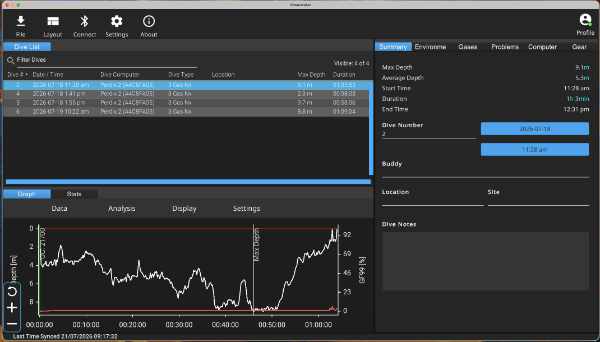
- Open Shearwater Cloud on your desktop and go to your dive log list.
- Select the dive you want to export. You can hold Shift or Ctrl/Cmd to select several dives at once.
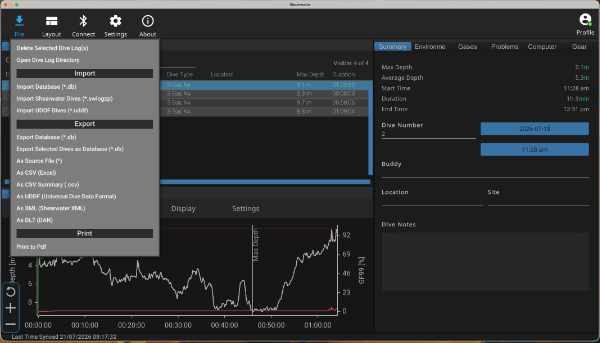
- Open the File menu and choose Export.
- Shearwater Cloud offers several export formats — choose UDDF or DAN DL7. (You can also choose Shearwater XML — see Importing a Shearwater XML File. Other options, such as CSV or SQLite, are not supported by DiveHub.)
- Save the exported file somewhere easy to find, such as your desktop or downloads folder.
Importing into DiveHub
Once you have a .uddf or .dl7 file saved:
- Open DiveHub and tap Add Dive on the Dives tab.
- Tap Import file and select the file you exported from Shearwater Cloud.
- DiveHub reads the file and pre-fills the dive details it finds — depth, time, temperature, and profile data.
- Fill in any details Shearwater Cloud doesn't record, such as the Dive Site name.
- Tap Save.
See Importing Dives for more detail on the import process.